Managing Team Members
We support adding multiple account logins to your primary account. Each login can have their own username (their email address) and password to login, and can be configured with separate roles:
- Administrator: logins with an Administrator role will have full access to your account. The only thing they can't do, is modify your primary account details.
- Billing Manager: in addition to read-only access to check results, logins with this role have access to billing related details: adding credit cards, making payments, changing packages, and viewing receipts. Logins with this role will also receive renewal and expiration notices related to your account.
- Developer: in addition to read-only access to check results, logins with this role will have access to the development settings on your account.
- Read-Only: these login are read-only, giving them access to check results only.
To manage logins, visit the Account ➡️ Teams page of the Portal, and click the Invite Team Member button:
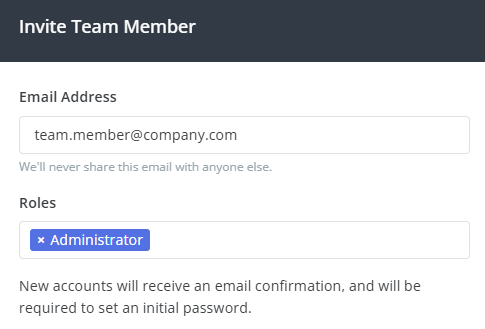
The new team member will receive a confirmation email, prompting them to set an initial password for their login. This is done so that only the owner of the account knows the password, and no passwords are ever passed via email or in and unencrypted connection.
Invitations that haven't been accepted yet are listed on the Pending Invites tab. If your account requires MFA, the invitation email says so, and the new member is taken to MFA setup right after they sign up. A member who accepts with Google or Microsoft must use the account for the address the invitation was sent to.
Multi-Factor Authentication
The MFA column on the Team Members page shows each member's multi-factor authentication status:
- Enabled: the member has an authenticator app or security key.
- Backup Codes Only: the member has only backup codes, which are for recovery.
- Not Set Up: the member has no MFA methods.
- Google or Microsoft: the member signs in with that provider, which handles their MFA.
If a member loses the device they use for MFA, the account owner can select them using the checkbox, and click Reset MFA at the top of the member list. After you confirm, this removes all of the member's MFA methods and signs them out everywhere, and the member gets an email for each method removed. Selected members with no MFA set up are left unchanged. If your account requires MFA, they set it up again the next time they log in.
Sending Password Resets
To send a password reset link, select one or more members using the checkboxes, and click Send Password Reset at the top of the member list. Each selected member is emailed a link to set a new password. A member who hasn't verified their email address yet is sent the verification email again instead.
Password resets are not supported on members who sign in with Google or Microsoft; they're skipped.
Your own login and the account owner's login can't be selected on this page. To reset your own password, use your profile or the Forgot your Password? link on the login page.
Sign-In Settings
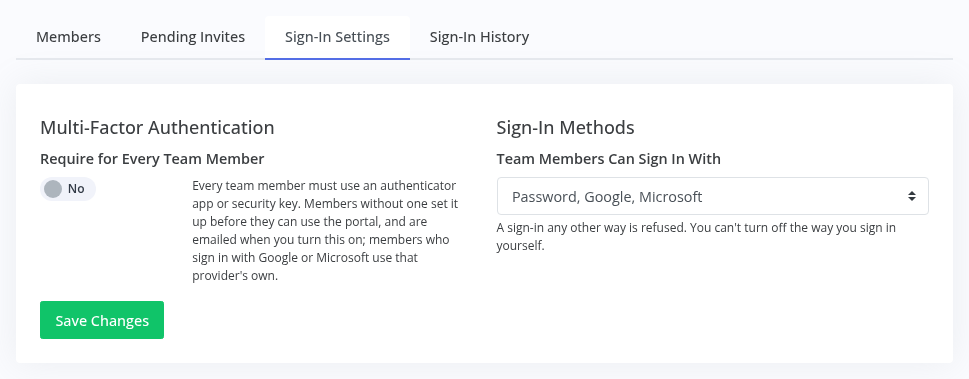
The Sign-In Settings tab of the Team Members page controls how your team members sign in. Only the account owner can change these settings; Administrators see them read-only.
Requiring Multi-Factor Authentication
Turn on Require for Every Team Member and click Save Changes to make MFA mandatory on your account. The requirement is met by an authenticator app or a security key; backup codes don't count on their own, since they're for recovery. You must add an app or key to your own login before you can turn it on.
When you turn it on, every active member who still needs to set it up gets an email saying so. While it's on, a member without an app or key is sent to Account ➡️ Profile ➡️ Multi-Factor Authentication ➡️ Add Authentication Method with a notice, and every other page sends them back there until they add one. Members who are already logged in see this on their next click. Members can't remove their last app or key while MFA is required. Members who sign in with Google or Microsoft are exempt, since their provider handles their MFA.
Sign-In Methods
Under Sign-In Methods, Team Members Can Sign In With sets how your team members can sign in to the portal. Check any mix of:
- Password: their email address and password.
- Google: their Google account.
- Microsoft: their Microsoft work or school account.
All three are allowed by default. Click Save Changes to apply your choice. A sign-in any other way is refused with a message saying how your organization requires them to sign in. The setting also applies to team invitations: an invited member must sign up with one of the allowed methods. You can't turn off the way you sign in yourself; its box is greyed out.
Sign-In History
The Sign-In History tab of the Team Members page lists every member's sign-ins, failed logins and sign-outs. The account owner and Administrators can see it.
Each entry shows the member, the event, and the method used (password, two-factor, Google or Microsoft) or why the sign-in failed: a wrong password, a wrong two-factor code or security key, or a sign-in method your account doesn't allow. It also shows the IP address, the approximate location and the browser. Pick a date range, and filter by member or event.