Adding a New Certificate Monitor
Creating a certificate monitor allows you to start tracking TLS/SSL certificates on any of your services. Navigate to Certificate & TLS Monitoring ➡️ Manage ➡️ Monitors and click the Add Monitor button in the top right corner. This opens the Add Monitor page.
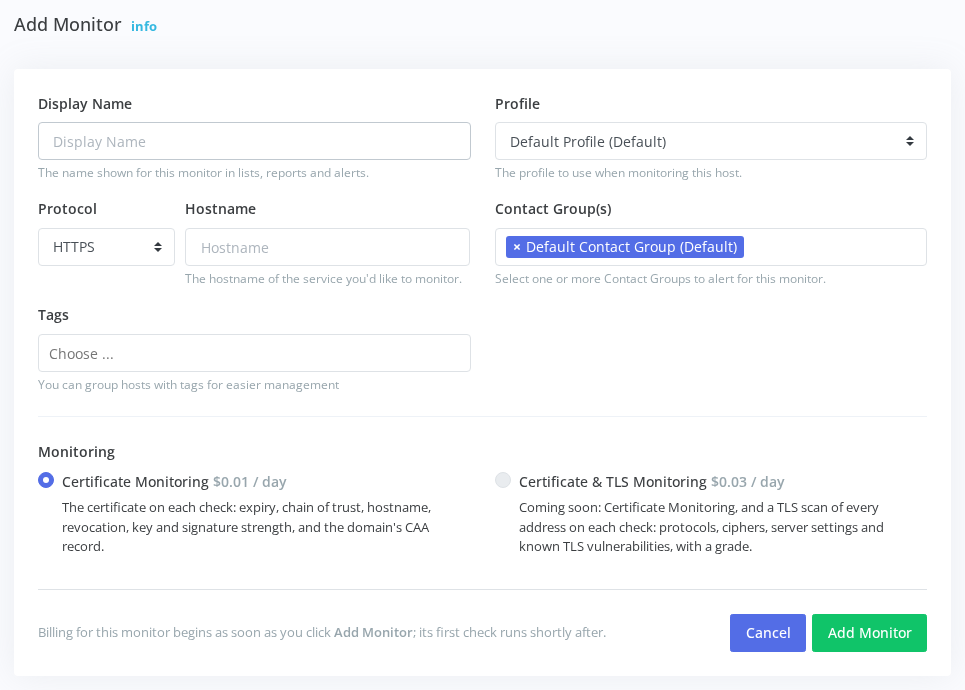
Configuration Fields
The Display Name field lets you assign a friendly, human-readable name for this monitor. Use descriptive names that identify the service and purpose, such as "Production Web Server", "Mail Server - SMTP", or "Internal LDAP - US-East". This name appears in the monitors list, error reports, and alert notifications.
The Protocol dropdown defines how the system connects to your service and retrieves the certificate. Available protocols include:
- HTTPS - Web servers and APIs
- SMTPS / SMTP+STARTTLS - Mail servers
- IMAPS / IMAP+STARTTLS - IMAP services
- POPS / POP+STARTTLS - POP3 services
- FTPS / FTP+STARTTLS - File transfer
- LDAPS / LDAP+STARTTLS - Directory services
- MySQL / PostgreSQL - Database connections
- SIPS - VoIP services
The Hostname field accepts DNS hostnames like mail.example.com, IPv4 addresses like 192.168.1.100, or IPv6 addresses like [2001:db8::1]. IPv6 addresses must be enclosed in square brackets. Append :port to override the protocol's default port, such as mail.example.com:2500, 192.168.1.50:8443, or [2001:db8::1]:8443. When using DNS hostnames, the system performs A and AAAA lookups and monitors all returned IP addresses, making it ideal for load-balanced services.
Enter only the hostname or IP address: do not include a protocol prefix (e.g., https://) or any other text. The port, if needed, is the only addition permitted (e.g., mail.example.com:2500).
The Monitoring choice sets what each check covers. Certificate Monitoring checks the certificate on each check: expiry, chain of trust, hostname, revocation, key and signature strength, and the domain's CAA record. Certificate & TLS Monitoring, which adds a scan of how each address handles TLS, is coming soon, and is shown on the page as such.
The Profile dropdown determines validation rules and alert thresholds for this monitor. The "Default Profile (Default)" is configured for publicly trusted certificates with standard expiration thresholds. Create custom profiles for specific use cases, internal services with private CAs, or to adjust alert thresholds based on certificate renewal lead times.
The Contact Group(s) selection specifies who receives alerts when certificate issues are detected. Select one or more contact groups from the available options: the "Default Contact Group (Default)" group is pre-selected. Contacts in all selected groups receive alerts. Manage contact groups and notification methods (email, SMS, Slack, etc.) in the Contacts section of your account.
The Tags field lets you organize and filter monitors using custom labels for easier management. Common tag categories include:
- Environment:
production,staging,development - Service type:
webserver,mailserver,database,ldap,api - Team:
devops,platform,security - Location:
us-east,eu-west,datacenter-1,aws,on-prem - Criticality:
critical,high-priority,customer-facing
Billing for this monitor begins as soon as you click Add Monitor, unless it's your account's free monitor: the oldest active HTTPS monitor on each account is checked for free. Monitors on other protocols are never free. Each active monitor counts toward your account's monitor limit; archived monitors don't. See how billing works.
After Adding
Once the monitor is added, its page opens, showing Pending First Check until the first check runs, shortly after. The page then shows the result: the Summary, the full Certificate Report with its findings and certificate chain, and the monitor's History. Later, open the page by clicking the monitor's name in the monitors list. See understanding certificate reports.
To change the monitor's name, profile, contact groups or tags later, use the Settings tab on its page.
If the first check reports a connection finding, verify the hostname resolves correctly, the service is running, the protocol matches the service, and any custom port is specified correctly. Each finding's How to Fix It link explains what to check.