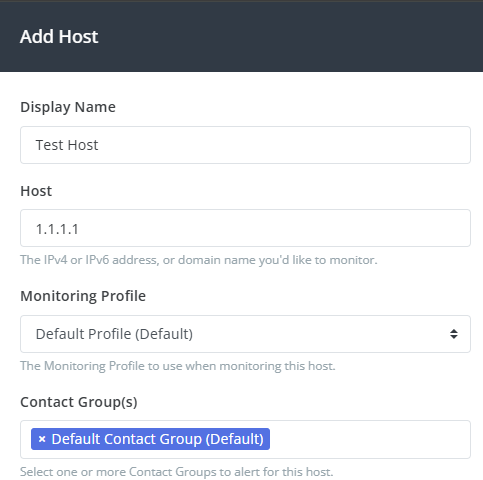
Setting up Contact Groups
Contact Groups let you easily control which contacts on your account are alerted when a host is listed. You can specify as many Contact Groups on your account as you like. Every host could have their own Contact Group if you want.
Contact Groups can be added via the Contacts ➡️ Manage ➡️ Groups section of the Portal. Simply enter the Name (label) of the Contact Group, and click Add Contact Group.
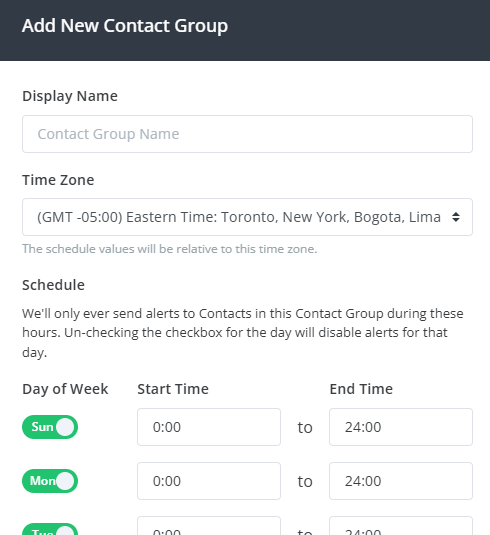
Contact Groups can include a time zone and weekly schedule (start & end times per day); alerts are only sent to this group during the scheduling window. This means you can configure groups of contacts that will only receive alerts during business hours, after-hours, or only on weekends. Times selected are relative to the selected time zone.
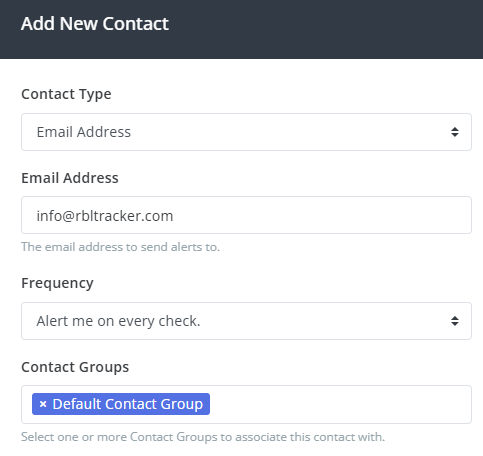
Once the Contact Group is added, it can be selected when adding/editing Contacts, from the Contacts ➡️ Manage ➡️ Contacts section, or when adding/editing Hosts from the RBL Monitoring ➡️ Manage ➡️ Hosts section.