AWS CloudWatch
We support sending messages to the Amazon CloudWatch Service - a monitoring and observability service designed for DevOps engineers, developers, site reliability engineers (SREs), and IT managers.
CloudWatch Log Group
Follow the Working with log groups and log streams article on the AWS support site to set up a new CloudWatch Log Group. Once configured, copy the ARN of the new Log Group to set up a new Contact.
IAM Settings
The AWS CloudWatch integration requires an AWS IAM Access Key and Secret to authenticate requests against your AWS account, and the ARN of a CloudWatch Log Group. This key only requires the logs:CreateLogStream and logs:PutLogEvents permissions to the provided ARN.
You can use this IAM Policy to grant access to your CloudWatch Log Group:
{
    "Version": "2012-10-17",
    "Statement": [
        {
            "Sid": "Alerts",
            "Effect": "Allow",
            "Action": [
                "logs:CreateLogStream",
                "logs:PutLogEvents"
            ],
            "Resource": "your-log-group-arn:log-stream:*"
        }
    ]
}
Simply replace the your-log-group-arn value with the ARN of your CloudWatch Log Group, and apply this policy against the IAM Access Key.
The Resource value should be the ARN of your CloudWatch Log Group, appended with :log-stream:*, for example:
arn:aws:logs:us-east-1:1234567890:log-group:rbl-events:log-stream:*
Make sure to change the region, account number, and log group name in the ARN.
Payload
The format of the body of the message delivered to your CloudWatch log stream uses JSON. The exact set of fields depends on the event_type. For a regular alert (RBL listing event, certificate event, etc.):
{
    "event_sid": "TAdde245352fc842d68c63f6693981be30",
    "event_type": "contact.trigger",
    "title": "RBL Listing Event",
    "message": "1 hosts listed, 0 hosts delisted. See link for more details.",
    "url": "https:\/\/rbltrack.com\/fFMa1S"
}
When a new contact is being confirmed, the payload includes an additional authcode field. The same value is also the last path segment of the confirmation URL, so a Lambda subscriber on the log stream can confirm the contact programmatically using the API:
{
    "event_sid": "EA47b3e1c2a8f5469d8e21043b6c8fa192",
    "event_type": "contact.confirm",
    "title": "Confirm your Contact",
    "message": "You were added as a new Generator Labs contact. Click the link below to confirm, or simply ignore this message to decline.",
    "url": "https:\/\/portal.generatorlabs.com\/main\/confirm\/contact\/COede245352fc842d68c63f6693981be30\/a4f3b2",
    "authcode": "a4f3b2"
}
Adding a Contact
You can add an AWS CloudWatch contact from the Contacts ➡️ Manage ➡️ Contacts section of the Portal.
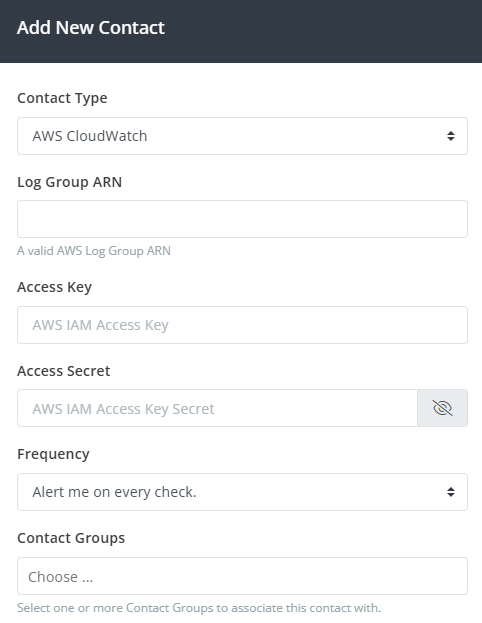
Select AWS CloudWatch from the Contact Type drop-down, enter the ARN of the CloudWatch Log Group, the Access Key & Secret of your IAM Access Key, a Frequency, and select one or more Contact Groups to associate with this new contact.
The ARN of the CloudWatch Log Group ends with a *, which is required to properly create the underlying log streams. For example:
arn:aws:logs:us-east-1:1234567890:log-group:rbl-alerts:*
After clicking Add Contact, you'll receive a confirmation message with a confirmation link that you'll need to click on to confirm your contact.
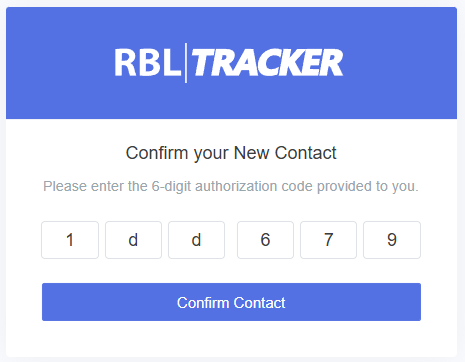
If you don't receive the confirmation message for some reason, you can also click the Resend Auth option to resend the confirmation message. Once a contact is confirmed, it will be ready to use.
The Frequency setting only applies to RBL Monitoring and will be removed in a future update. Other products such as Certificate Monitoring have their own alerting options.