Connecting Your Google Account
Once your domains are verified in Google Postmaster Tools, you can connect them to your account from RBL Monitoring ➡️ Postmaster Tools.
Start the connection
Click Connect Google Account. You will be redirected to Google to sign in and authorize access.
Authorize read-only access
Sign in with the Google account that owns your Postmaster Tools domains and approve the request. We only ask for read-only access:
postmaster.domain: to list the domains in your Postmaster Tools account.postmaster.traffic.readonly: to read traffic statistics and compliance status.
We can never send mail, change your domains, or modify anything in your Google account, and we never see your mailbox content.
The setup wizard
After you authorize, a short two-step wizard runs:
Step 1: Select Domains. We show the domains Google returned. Domains already monitored on your account are listed for reference; new domains are pre-checked so you can add them as monitored hosts in one click. If you are near your plan's host limit, only as many as you have room for can be selected.
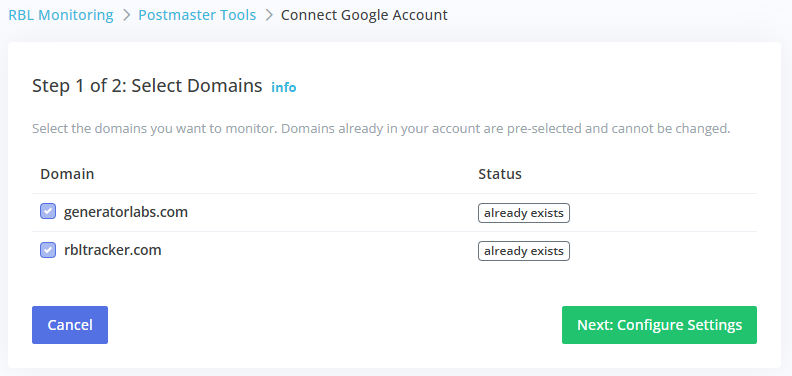
Step 2: Configure Settings. Give the connection a display name, choose whether to automatically add domains discovered in the future, and set your rate thresholds (defaults are pre-filled).
Click Save and the connection is created. Its first import begins within a few minutes and back-fills up to 90 days of history so your graphs are populated immediately.
Managing connections
On the Postmaster Tools page each connection shows its status, the connected Google account, a Stats link, and when it last imported. From there you can pause, edit thresholds, delete, or Re-authorize a connection.
If a connection's access is ever revoked at Google, its status changes to Re-authorize. Click it to reconnect; no data is lost and monitoring resumes automatically.
If a connection fails to import several days running, it is paused with a status of Failed and we email the account owner. Fix whatever is blocking it at Google, then set the connection back to active to resume importing.
You can connect up to 5 Google accounts.