Setting Up Google Postmaster Tools
Before you connect Google Postmaster Tools to your account, your domains need to be registered and verified in Google Postmaster Tools. This is a one-time setup you do directly with Google, and it is the same whether or not you use Generator Labs.
1. Register your domains
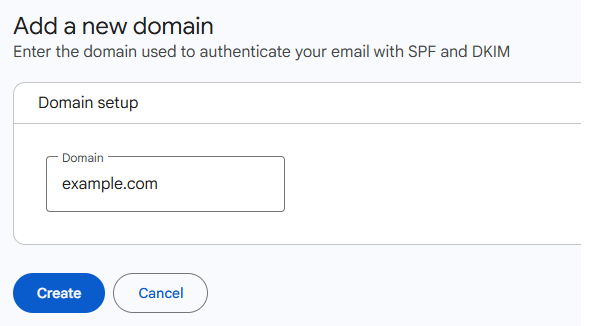
Sign in to Google Postmaster Tools with the Google account you want to use, and add each domain you send mail from. You should register the domain you sign your mail with (your DKIM signing / From: domain), which is usually your base domain.
2. Verify ownership
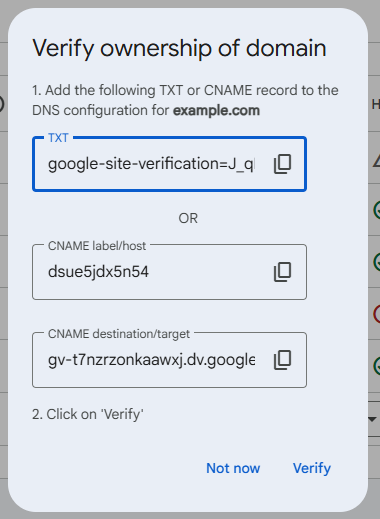
Google will give you a TXT record to add to each domain's DNS. Add it, then click verify. A domain must be verified before any data (or our connection) can read it.
3. Wait for data to populate
Google only shows data for domains that send enough volume to Gmail (roughly a few hundred messages a day), and data lags 1 to 3 days. A freshly registered or low-volume domain may show no data for a while. That is normal, and our connection handles it gracefully: the domain still appears, it simply has no metrics until Google publishes them.
What you do not need to do
You do not need to create a Google Cloud project, an OAuth client, or an API key. The connection uses Generator Labs' own application; you only authorize read-only access in the next step.
Next
Once your domains are verified, connect your Google account in the portal.